How to start an assessment, work through it section by section, add notes and evidence, and submit it.
Who this is for: Assessors (the frontline staff carrying out assessments).
Before you start
- You need the Assessor role or higher. If you can see the New Assessment button, you have access.
- The assessment you want must already be set up for your unit. You'll only see assessments for the units you have access to.
- You don't have to finish in one go. You can save and pick it up again later (see Find and pick up a draft).
Start a new assessment
- Click New Assessment.
- Choose the Organisation Unit you're assessing.
- Choose the Assessment Type. Only assessments set up for that unit appear in the list. If the list is empty, no assessments have been set up for this unit yet.
- Click Start New Assessment. You'll land on the first section, ready to go.
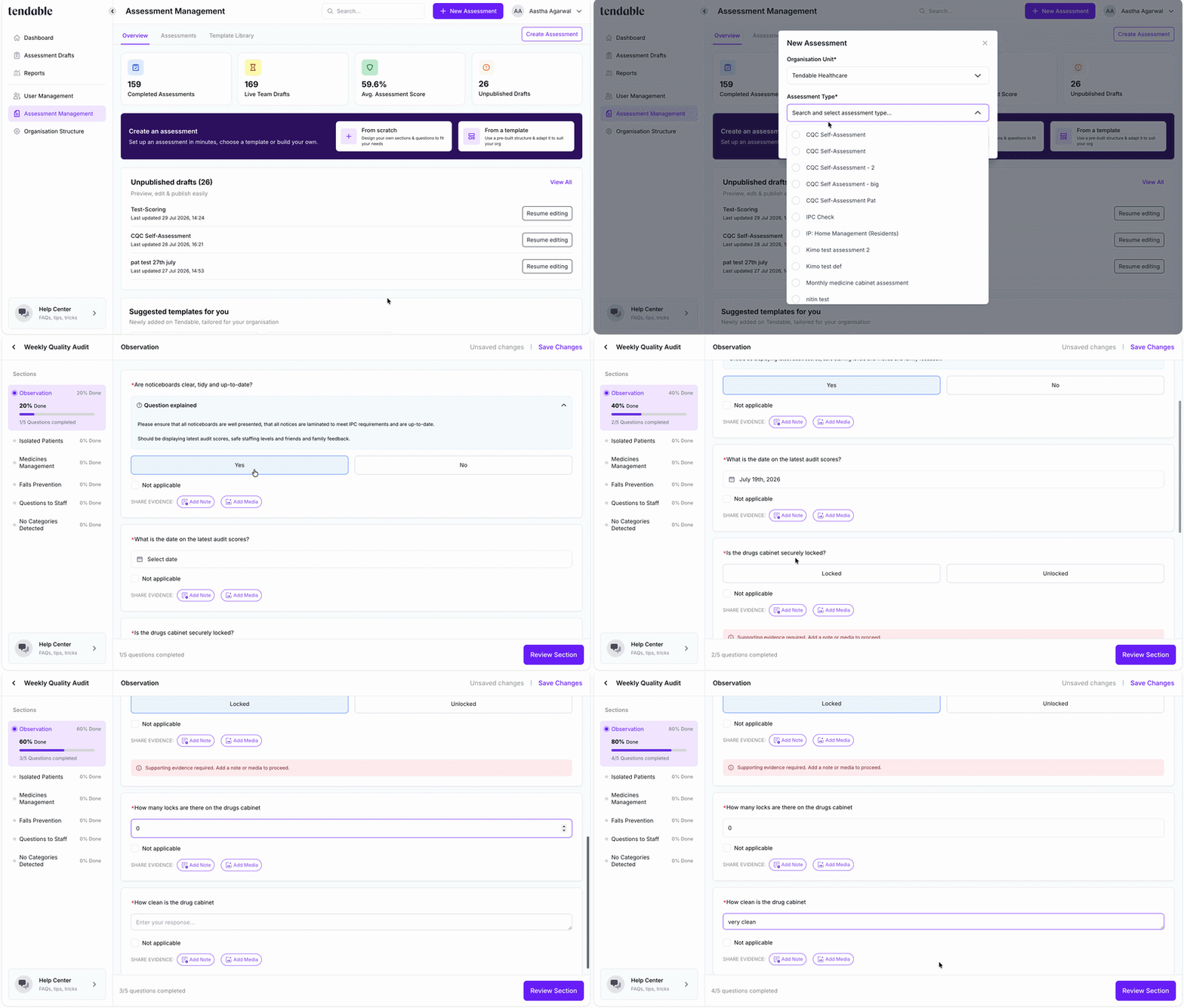 Start a new assessment and answer different type of questions
Work through the assessment section by section
You complete an assessment one section at a time. The sidebar (or the sections menu on a phone) lists every section and shows your progress, and the footer shows how many questions you've completed in the section you're on, for example "4/6 questions completed".
Answer each question using the control it gives you:
| Question type | How you answer it |
|---|---|
| Yes / No | Choose Yes or No. |
| Single Choice | Pick one option. |
| Free Text | Type your answer. |
| Number | Enter a number. |
| Date | Pick a date. |
A few things to expect as you go:
- Some questions appear only when they're relevant. If a question depends on an earlier answer, it shows up once you give that answer. You don't need to do anything, it will just appear.
- Not applicable. Where a question allows it, you'll see a Not applicable checkbox. Tick it when the question doesn't apply to what you're assessing.
- Guidance. Some questions include extra guidance or links to help you answer correctly.
Add a note or evidence
Every question lets you add supporting evidence:
- A note (a short written comment).
- A photo or file (images, audio, video, PDF, Word, and Excel files, up to 10 MB each).
Most of the time this is optional, but some questions need evidence before you can finish. This is either always, or only when you answer No to a Yes/No question. When evidence is needed, you'll see a prompt: Supporting evidence required. Add a note or media to proceed.
Add a note or attach a file to clear it. If you've marked the question Not applicable, no evidence is needed.
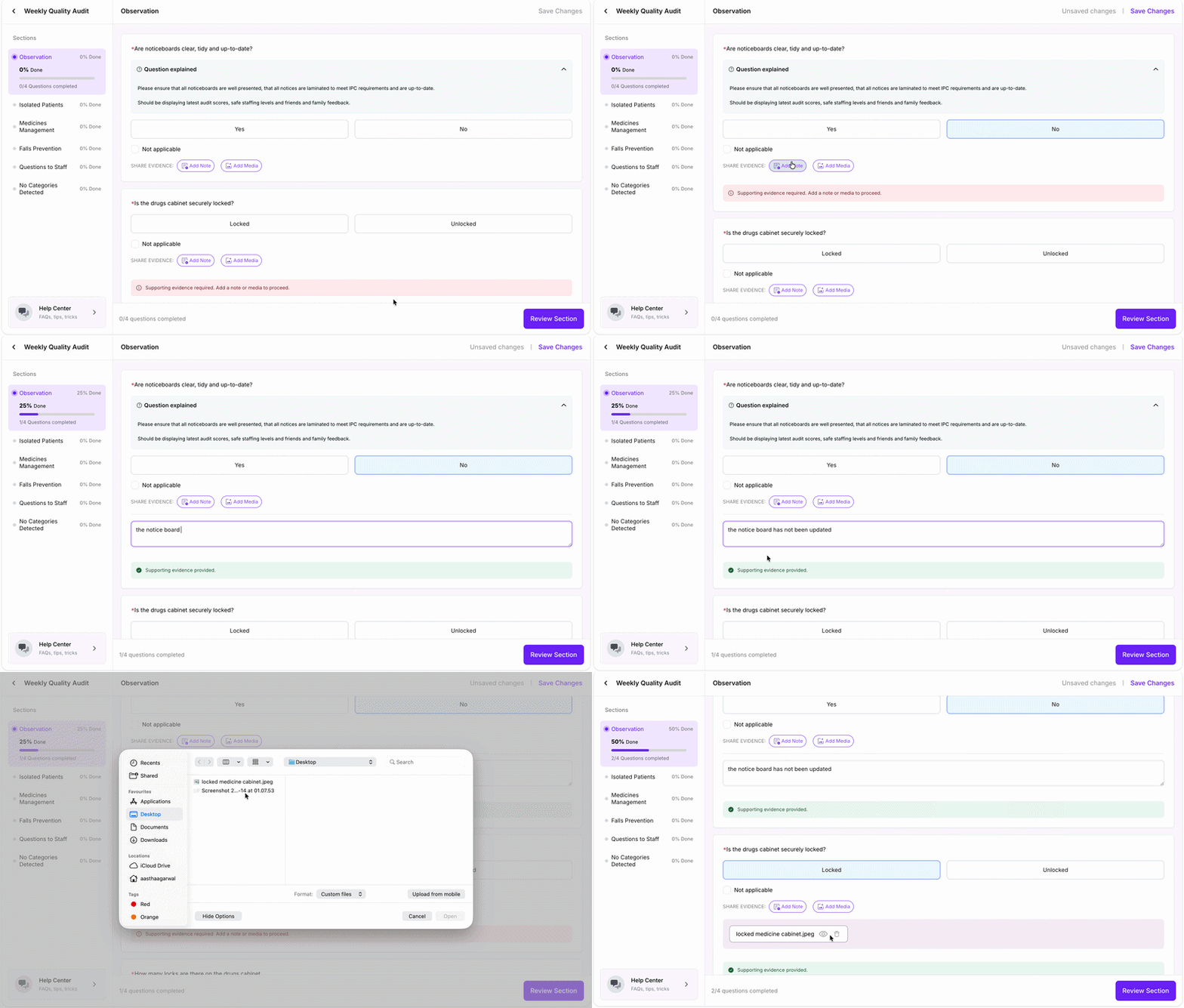
Add a note or evidence
Sections that repeat
Some sections ask you to review several items, for example a number of patients, rooms, or observations. Use the Add button to add each one, and answer the questions for each. Every item has its own answers and its own evidence. You'll need to complete the minimum number set for that section before it counts as done.
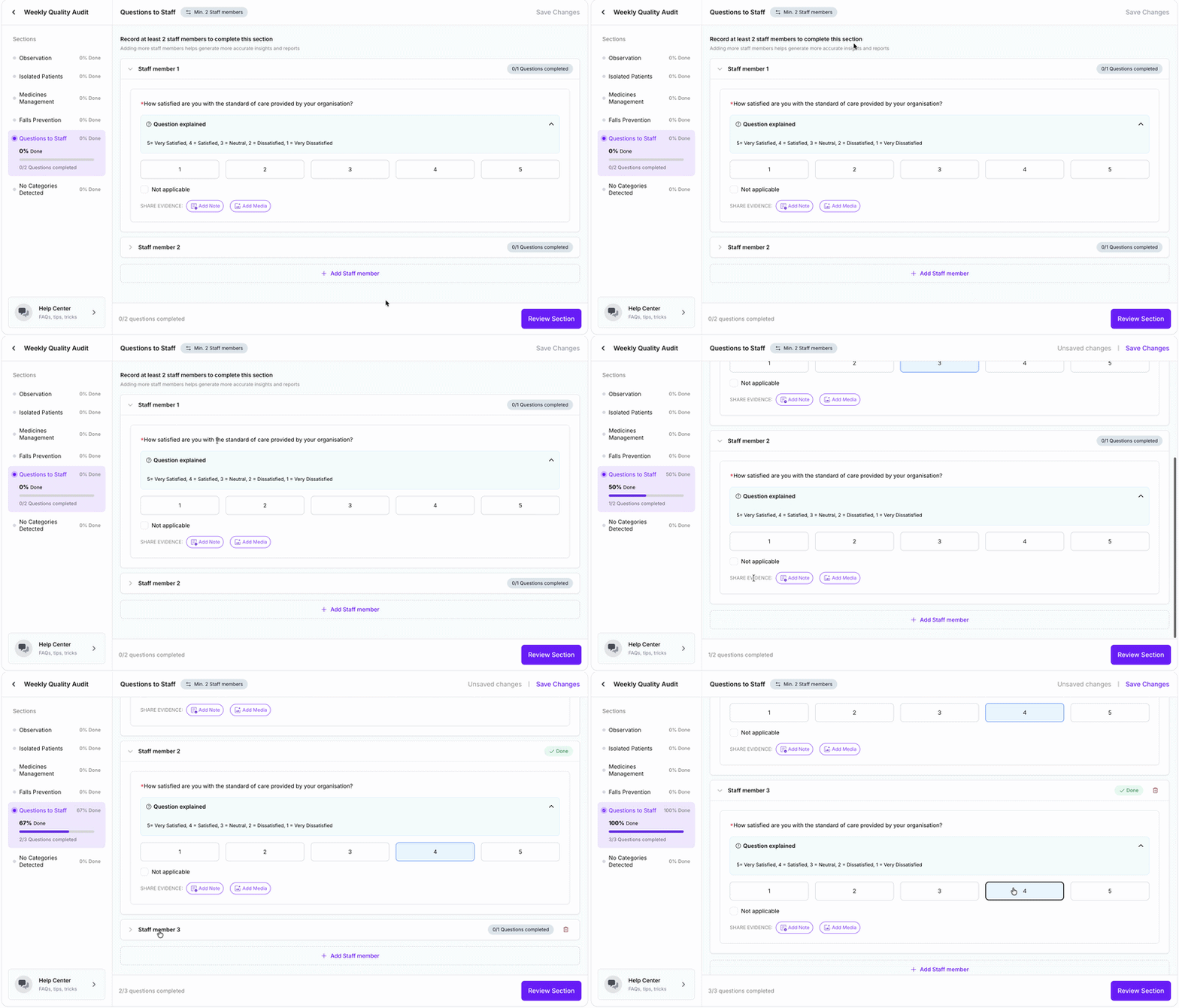
Sections that repeat
Save as you go
Click Save Changes at any point to save your progress. If you try to move to another section or leave with unsaved answers, Tendable warns you so nothing is lost. A saved, unfinished assessment becomes a draft you can come back to (see Find and pick up a draft).
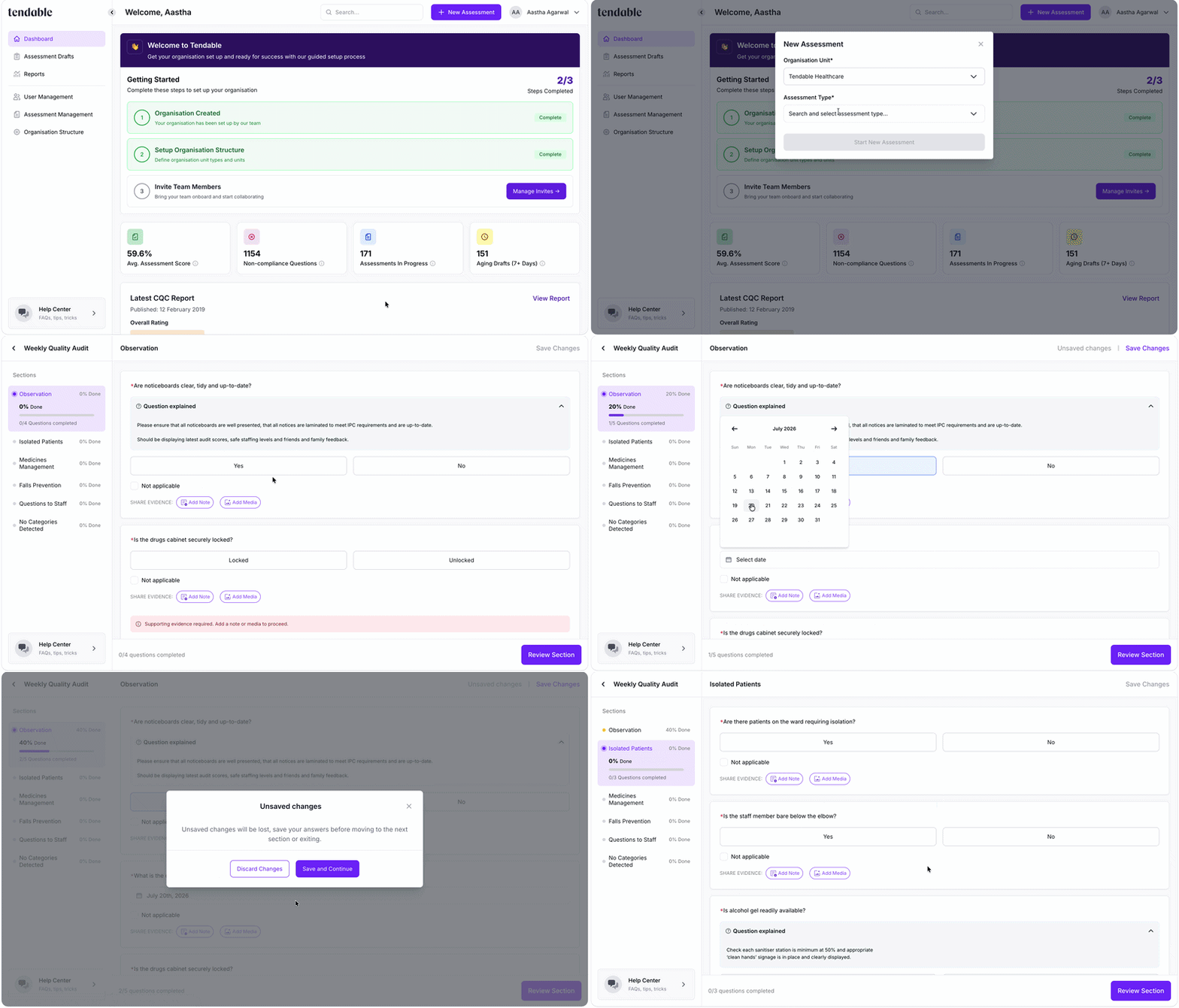
Save changes
Review and submit
- Keep completing sections. While other sections are still unfinished, the main button reads Review Section and moves you on to the next one that needs attention.
- When you're working on your final section, the button becomes Submit Assessment.
- Click it and confirm. Submitting is final, so you'll be reminded that no further editing will be possible.
- If anything is still missing, a required answer or required evidence, you'll see a Needs action flag on that question. Fix it and submit again.
Once submitted, you'll see "Your assessment is complete", and a report is generated automatically. From there you can View Report or Go to Dashboard.
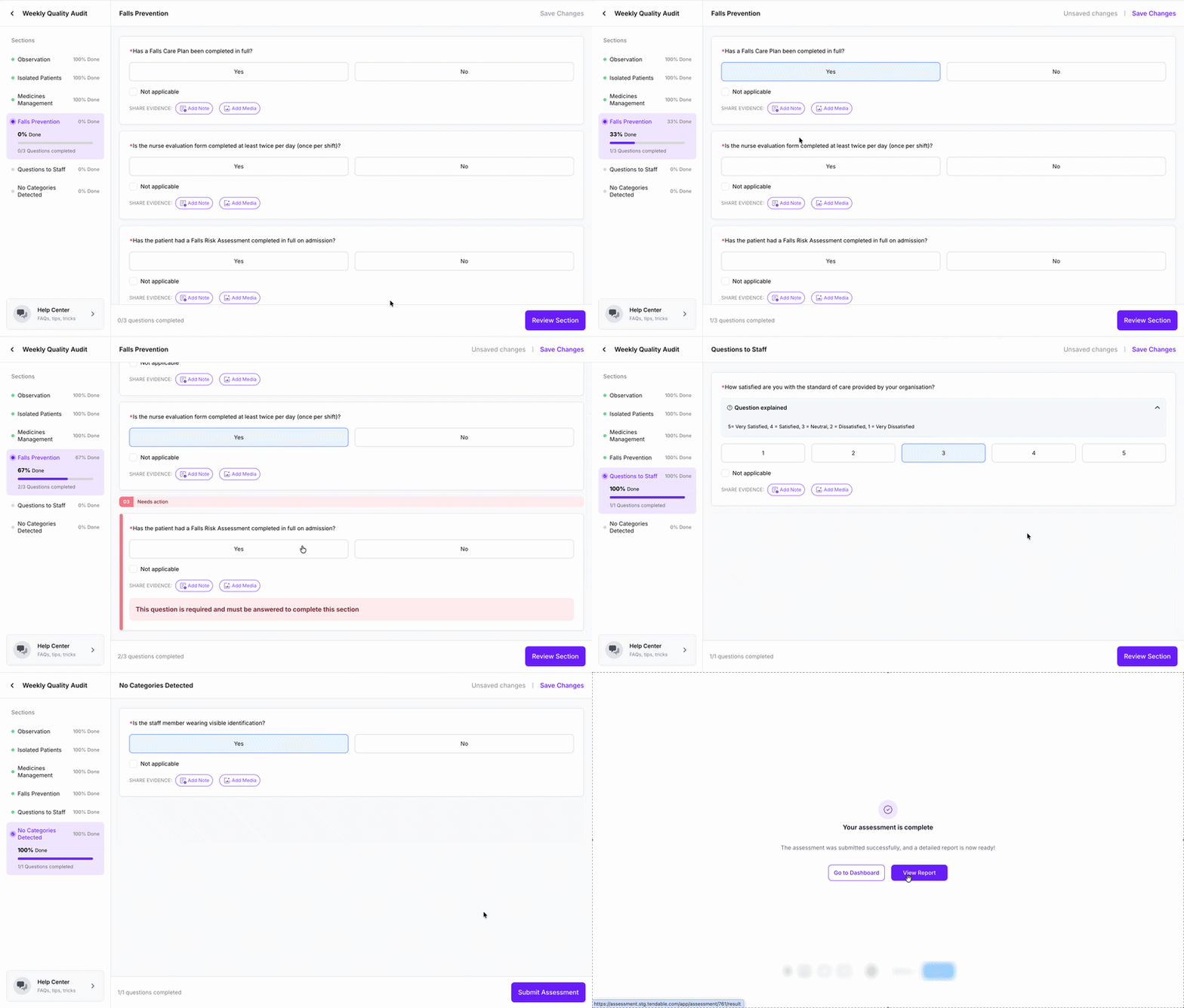
Review and Submit
Tips and troubleshooting
- The button says "Review Section", not "Submit Assessment". That means other sections still need finishing. Work through them and the button changes to Submit Assessment.
- A question shows "Needs action". It's missing a required answer or required evidence. Add what's needed, or mark it Not applicable if that's allowed, then submit again.
- My photo won't attach. Check it's under 10 MB and a supported type (image, audio, video, PDF, Word, or Excel).
- I can't find the assessment I need. It has to be set up for the unit you choose, and you only see assessments for your own units. If it's missing, ask whoever manages your assessments to set it up.
- I've submitted but need to change something. Submitting is final and locks the assessment, so it can't be edited afterwards. Speak to your manager about the best way to handle a correction.
- I'm not finished. Click Save Changes and come back to it later from your drafts.
Related articles
Was this article helpful?
That’s Great!
Thank you for your feedback
Sorry! We couldn't be helpful
Thank you for your feedback
Feedback sent
We appreciate your effort and will try to fix the article