How to add, edit, and remove the categories your units belong to, like Ward, Hospital, or Care Home.
Who this is for: Admins who manage your organisation structure.
Before you start
- You need an Admin role.
- A unit type is the category a unit belongs to. You assign a type to every unit when you create it, so it's worth having the types you need before you add lots of units.
- If you're not sure how units and unit types relate, see How your organisation structure works.
Create a unit type
- In the admin area, open Organisation structure and go to the Organisation Unit Types tab.
- Click Add Organisation Unit Type.
- Enter a Name (for example, "Ward").
- Add a short Description if it helps your team recognise it.
- Save. The new type is ready to assign to units straight away.
Edit a unit type
- Find the type in the list. Search by name if it's long.
- Click Edit, change the name or description, then save.
Editing a type updates it everywhere. Units already using it keep the type, now with the new name.
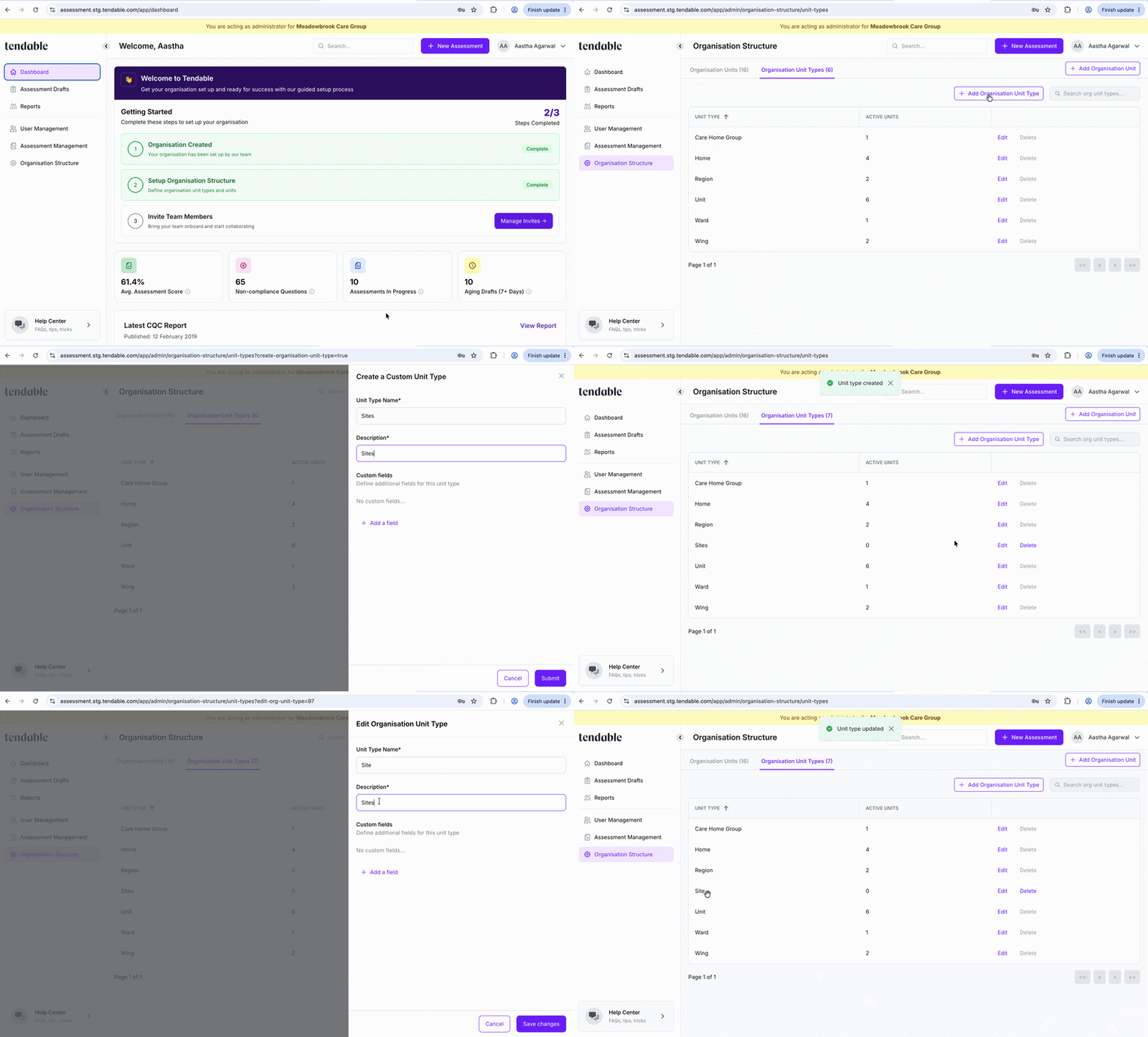
Create / edit unit types
Delete a unit type
- Find the type in the list.
- Click Delete and confirm.
You can only delete a type that no units are using. The Active Units column shows how many units currently have each type.
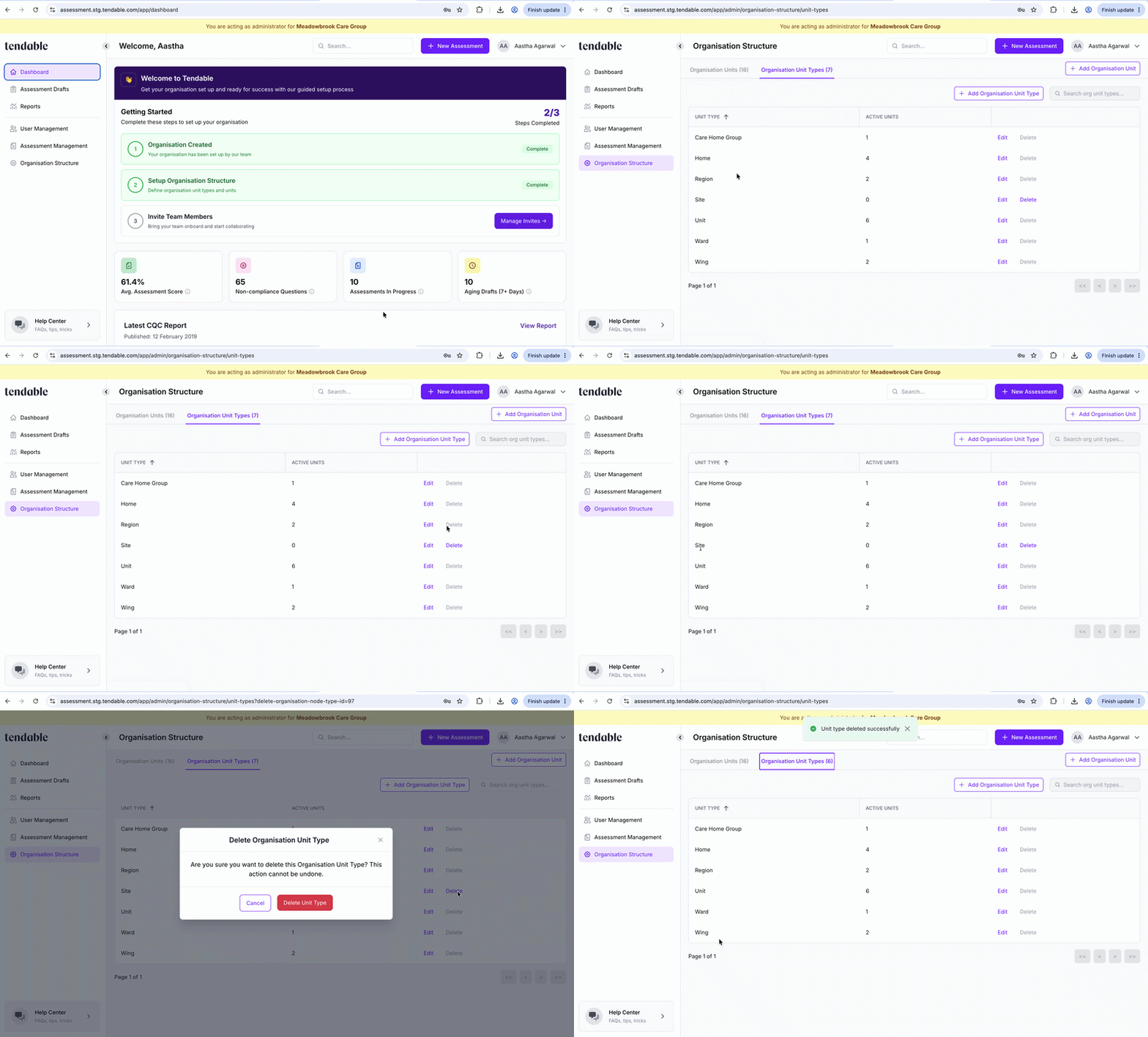 Delete unit type
Capturing extra detail (optional)
A unit type can carry a few custom fields, so units of that kind capture more than just a name. You can add fields like text, numbers, dates, or a dropdown. Most organisations don't need this, and the basics are enough to get going, so treat it as an extra for later rather than a setup step.
Tips & troubleshooting
- "Cannot delete a unit type that is in use." Some units still have this type. Reassign those units to another type, or delete them, then remove the type. The Active Units count tells you how many are in the way.
- Type names must be unique. Each unit type name can only be used once across your account.
Related articles
Was this article helpful?
That’s Great!
Thank you for your feedback
Sorry! We couldn't be helpful
Thank you for your feedback
Feedback sent
We appreciate your effort and will try to fix the article