How to add a new unit to your organisation structure, change its details, and move it to a different place in the hierarchy.
Who this is for: Admins who manage your organisation structure.
Before you start
- You need an Admin role. If you can see Organisation structure in the admin area, you have access.
- Your structure setup needs to be complete. If it isn't, you'll be taken to the setup steps first (see Set up your organisation structure).
- Know where the new unit belongs. Every unit sits under a parent (for example, a ward sits under a hospital), and has a unit type (Ward, Care Home, and so on).
Add a unit
- In the admin area, open Organisation structure and stay on the Organisation Units tab.
- Click Add Organisation Unit.
- Enter the unit's Name.
- Choose the Parent unit. Start typing to find it in the list. This decides where the unit sits in your structure.
- Choose the Unit type.
- Fill in any extra fields shown. Some unit types ask for a little more information.
- Save. The new unit appears in the list straight away.
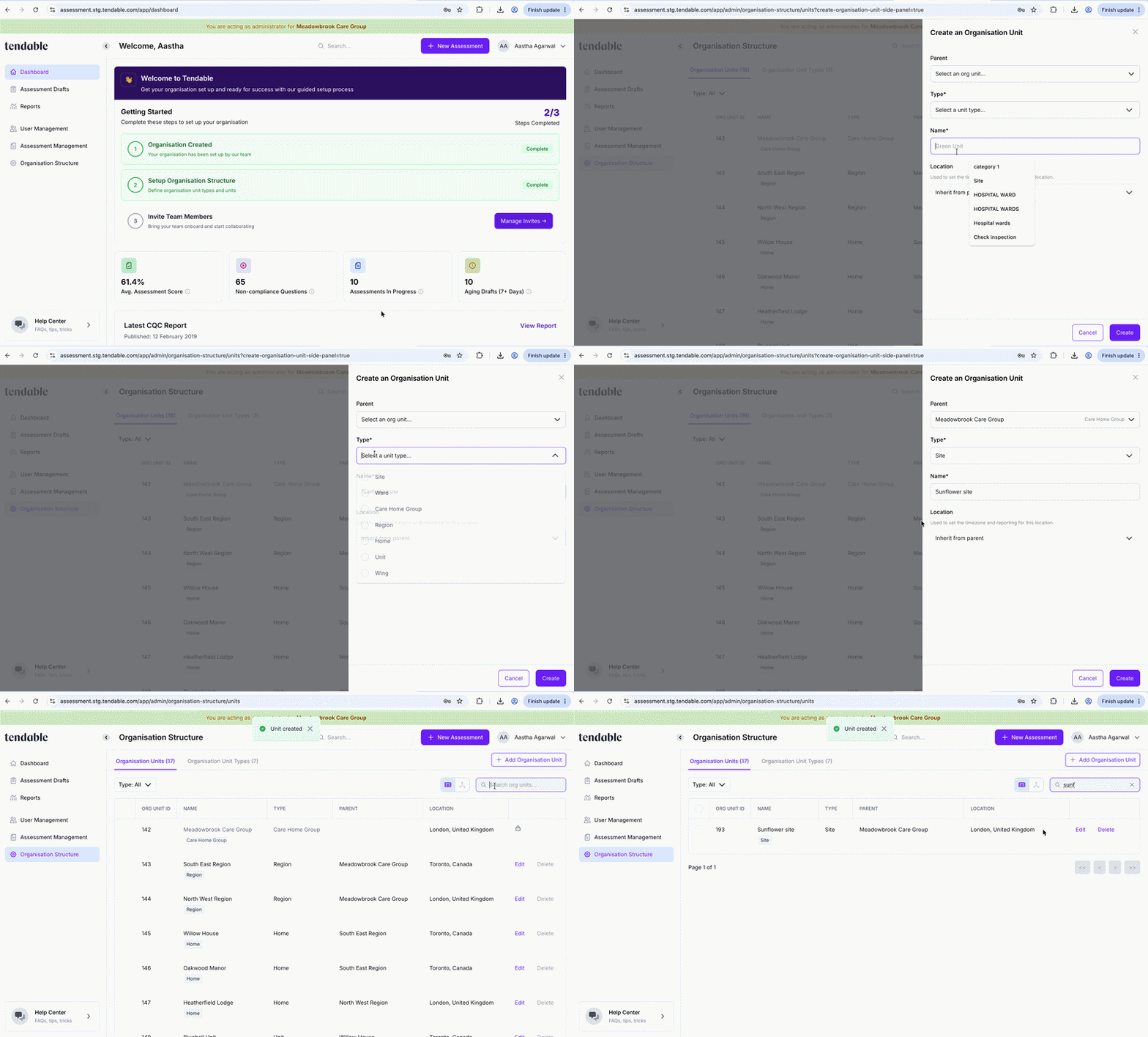
Add a unit
Edit a unit
- Find the unit. Search by name, filter by type, or switch to Tree view to see the whole structure.
- Click Edit on that unit's row.
- Change the name, details, unit type, or parent, then save.
Move a unit
Moving a unit is the same as editing its parent.
- Edit the unit (steps above).
- Choose a new Parent, then save.
When you move a unit, everything underneath it moves with it. Its child units, and the people and audits attached to them, stay connected.
Delete a unit
- Find the unit and open Delete from its row.
- Confirm in the Delete Unit window.
A unit can only be deleted once nothing is connected to it (see troubleshooting below).
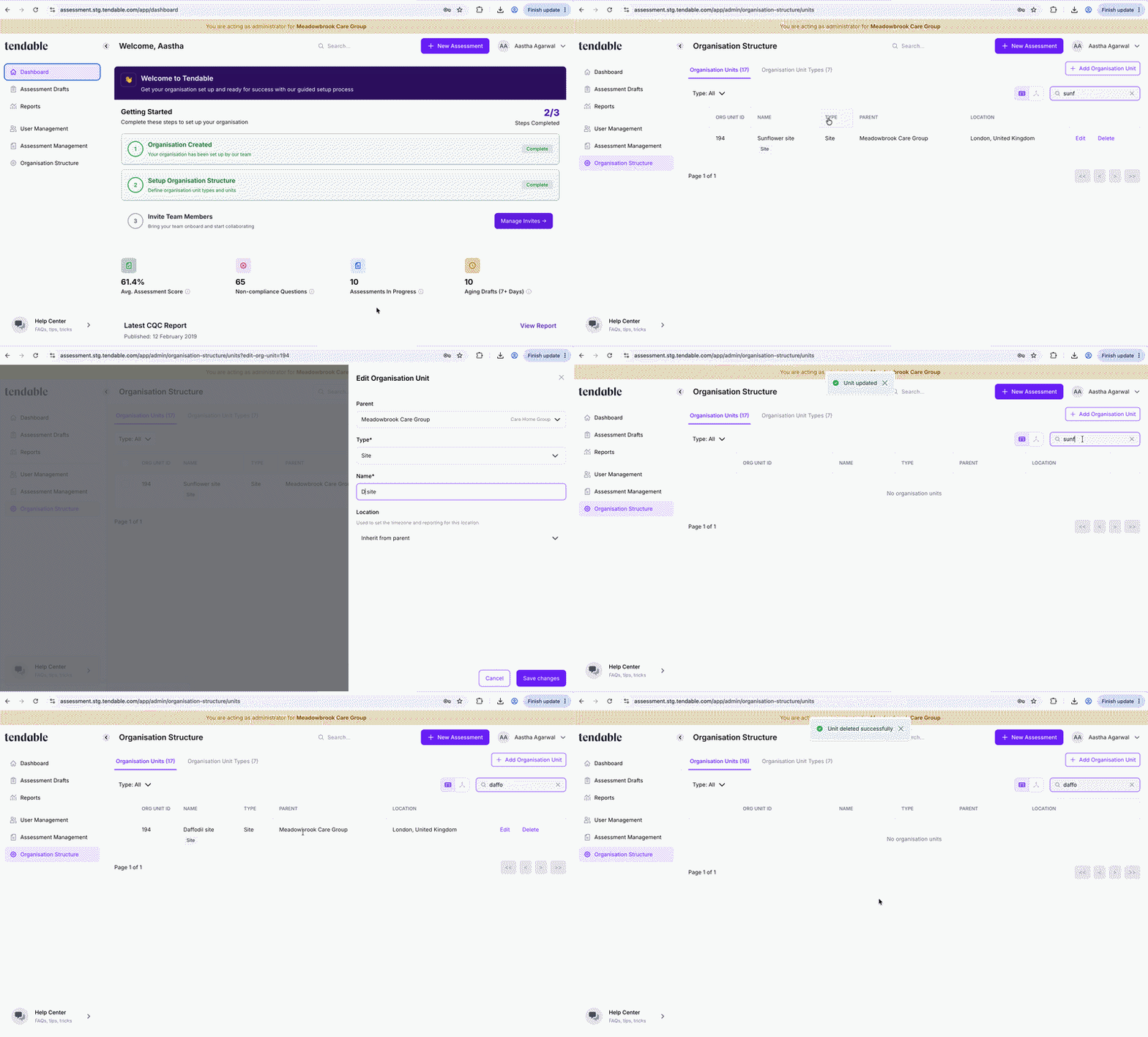 Edit and delete a unit
Tips & troubleshooting
- "This unit can't be deleted." A unit can't be removed while it still has child units, users, invites, or audits linked to it. Move or reassign those first, then delete the unit. This is deliberate, so you don't lose history or leave people unassigned.
- Your top-level unit is locked. The unit at the very top of your structure can't be edited or deleted. It's the anchor everything else hangs off.
- Two units can share a name, but not under the same parent. Sibling units need different names. Units in different parts of the structure can reuse a name.
- A unit is missing from the Parent list. You can't move a unit underneath one of its own sub-units, as that would create a loop. Those units are hidden from the picker on purpose.
- Table view or Tree view. Use Table view to search and sort a long list. Use Tree view to see how everything fits together and to find a unit by where it sits.
Related articles
Was this article helpful?
That’s Great!
Thank you for your feedback
Sorry! We couldn't be helpful
Thank you for your feedback
Feedback sent
We appreciate your effort and will try to fix the article