How to sign in with your email, password, and verification code, and how to sign out when you're done.
Who this is for: Everyone with a Tendable account.
Before you start
- You need the email address and password for your account. If you haven't set a password yet, see Set up your account from your invitation.
- Signing in always asks for a verification code we send to your email, so keep your inbox handy. This is your two-step verification, and it's on for every account.
Steps
- Go to the Tendable sign-in page and select 'Get Started'. Enter your email address, then select Continue.
- On the next screen you'll see "Signing in as [your email]". Enter your password and select Continue.
- We email you a 6-digit code if its set up for your organisation. Open your email, enter the code on the "Verify your email to continue" screen, and select Confirm and log in.
- That's it. You'll land on your home screen.
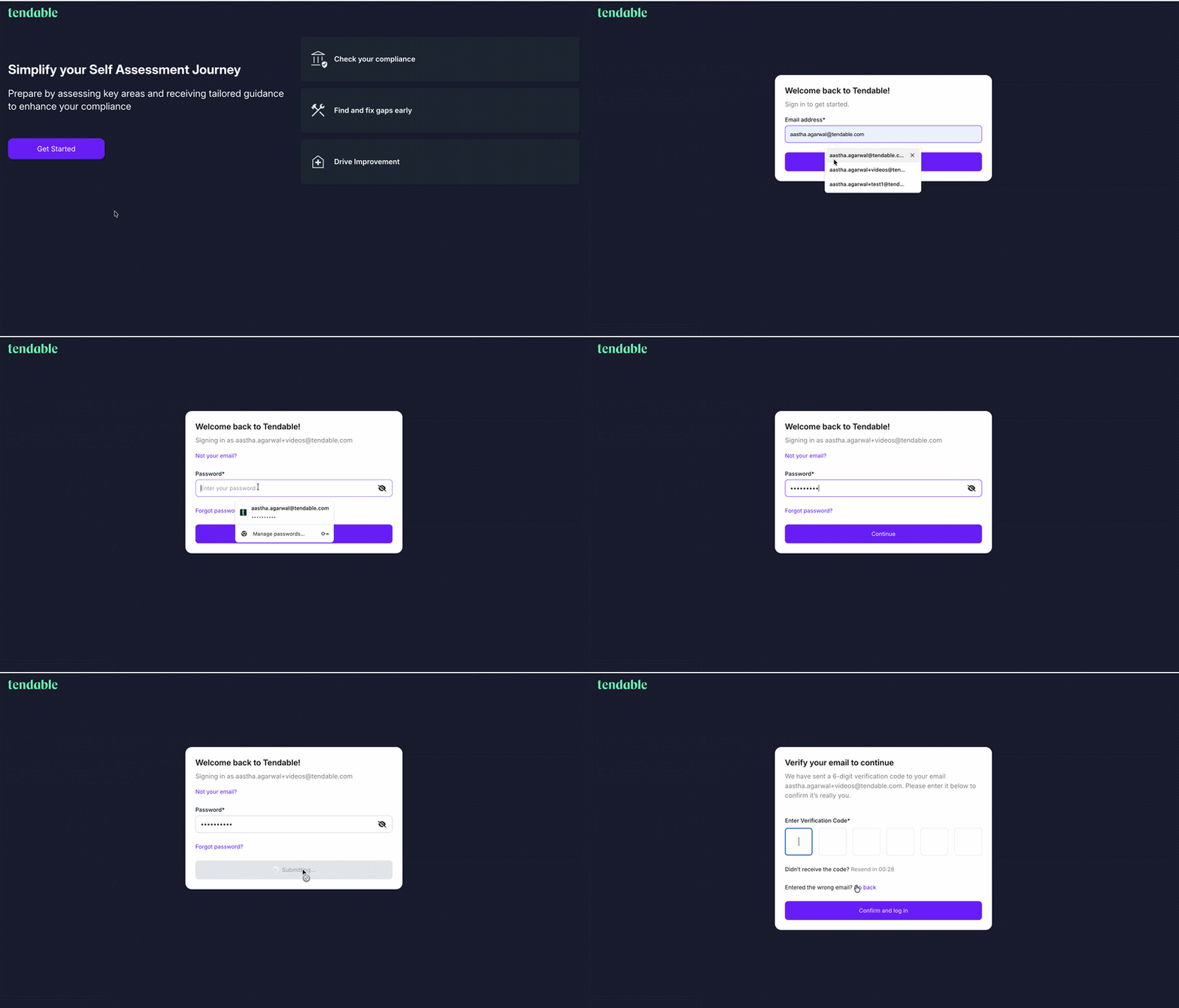 Sign in to Tendable
If your code doesn't arrive
- The code goes to the same email you sign in with. Check your spam or junk folder first.
- On the code screen there's a short countdown. Once it finishes, a Resend Code option appears, so you can send a fresh code.
- Codes are only valid for a few minutes. If yours has expired, just resend and use the new one.
Sign out
- Select your photo or initials in the top right of the screen.
- Choose Sign out.
You'll be returned to the Tendable home page. For security, always sign out on shared or ward devices.
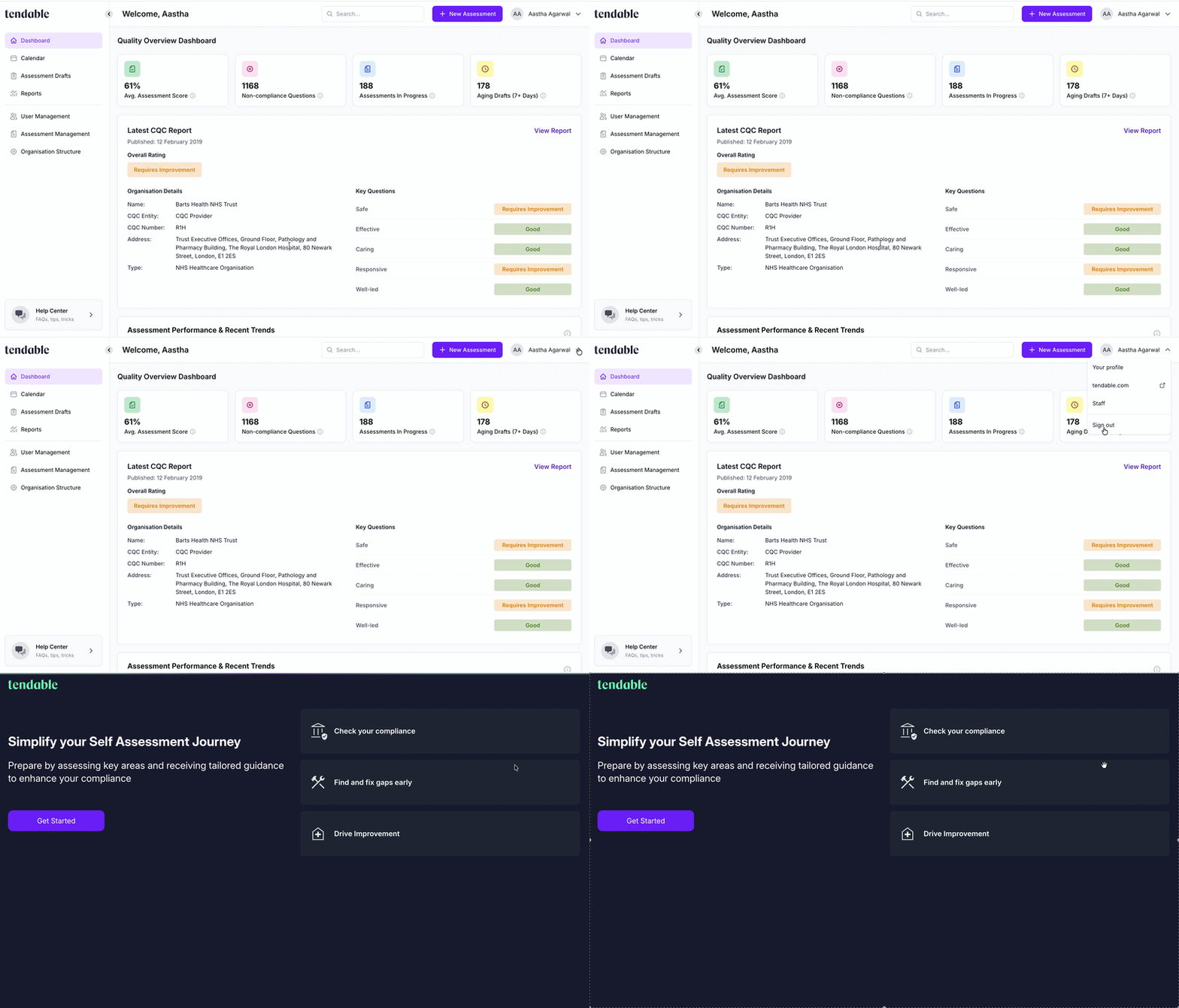 Sign out
Tips and troubleshooting
- "Sign-in failed." Usually a wrong password. Try again, or select Forgot password? on the password screen to reset it.
- The code is slow to arrive. Email can be delayed, especially on NHS networks. Wait a moment, check spam, then use Resend Code.
- "This account has been deactivated." Your access has been switched off. Contact your administrator to be reactivated.
- You're asked to reset your password before you can sign in. This is a one-off after a system update. Follow the steps in Reset your password.
Related articles
Was this article helpful?
That’s Great!
Thank you for your feedback
Sorry! We couldn't be helpful
Thank you for your feedback
Feedback sent
We appreciate your effort and will try to fix the article