Where to find your own account details in Tendable, what they show, and what you can and can't change yourself.
Who this is for: Everyone with a Tendable account.
The short version
Your profile is a simple page showing who you're signed in as: your photo, your name, the organisation you belong to, and your email address. It's there for you to check your details, not to edit them. Most changes are made for you by an Administrator (see below).
Find your profile
- Look for your photo or initials in the top right of the screen.
- Click it to open your account menu.
- Choose Your profile.
You'll land on the Profile Details page.
What your profile shows
- Your photo, or your initials if you didn't add one.
- Your name.
- Your organisation, shown next to your name.
- Your email address, which is the one you sign in with.
That's everything the page holds. There are no other personal settings to manage.
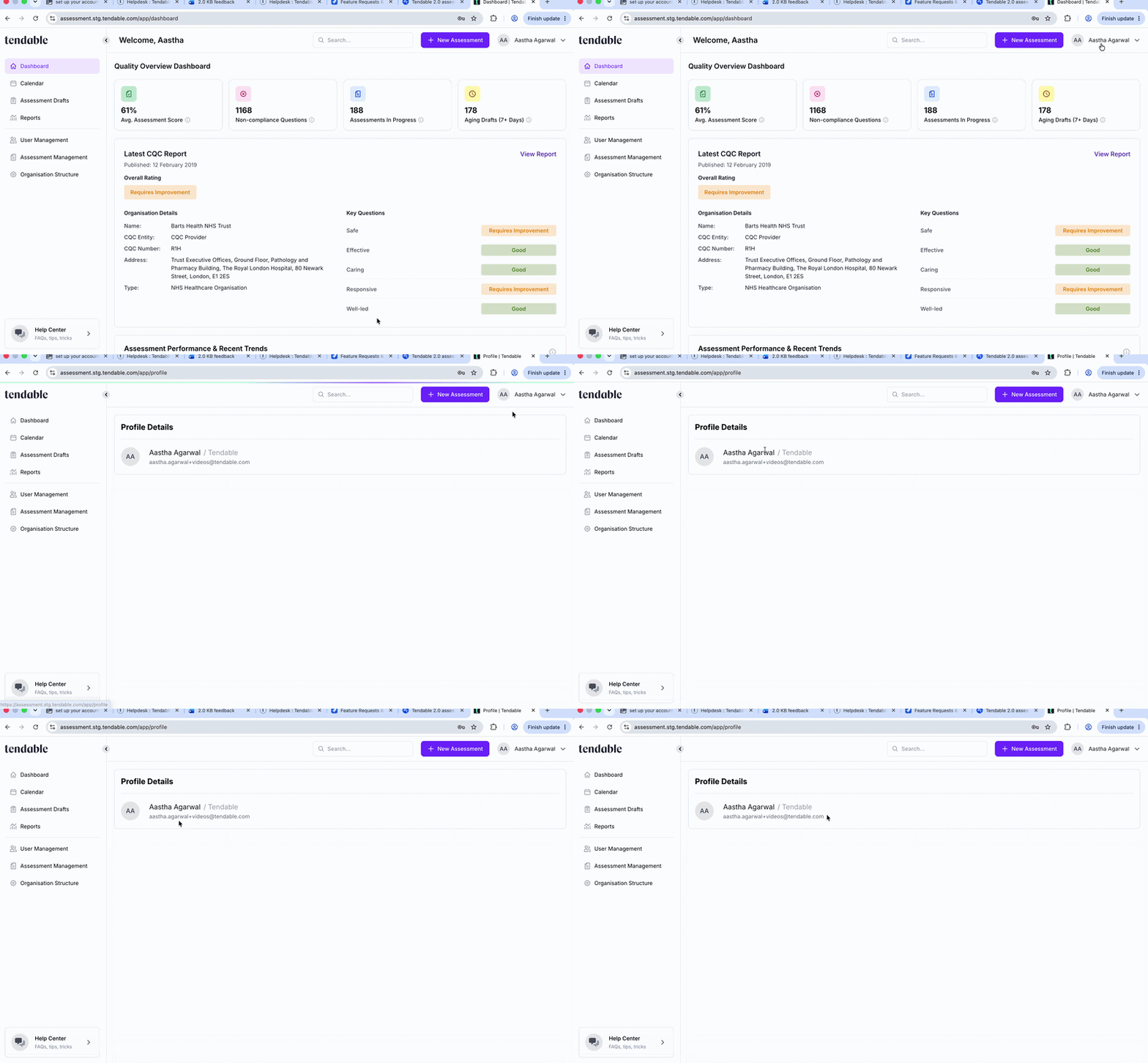 Your profile details
Changing your details
There's no edit button on the profile page, and that's deliberate. Here's how each detail is changed:
- Your photo. You can add a photo when you first set up your account, on the "Complete your profile" step. After that, it can't be changed in Tendable. If you need to update it, speak to your administrator.
- Your name. If your name is wrong or has changed, an Administrator or User Manager can update it for you from the Users area. You can't change it yourself.
- Your email address. This is the address you sign in with, so it can't be changed from your profile. If it's wrong, ask your administrator.
If you're an Administrator or User Manager yourself, see Deactivate or reactivate a user for how to edit someone's name or unit.
Signing out and security
- To sign out, open the same account menu (top right) and choose Sign out.
- To change your password or manage two-step verification, see the Account and Security articles.
Related articles
- Roles and permissions explained (who can change your details)
- Deactivate or reactivate a user (for Administrators editing a user)
- Sign in to Tendable
- Set up your account from your invite
- Reset your password
Was this article helpful?
That’s Great!
Thank you for your feedback
Sorry! We couldn't be helpful
Thank you for your feedback
Feedback sent
We appreciate your effort and will try to fix the article