How to set a new password if you've forgotten yours, or if you just want to change it.
Who this is for: Everyone with a Tendable account.
Before you start
- You need access to the email address you sign in with. The reset link goes there.
- Resetting your password signs you out on every device, so you'll need to sign in again afterwards, including on your phone or any ward devices.
Steps
- On the sign-in screen, enter your email and continue to the password step, then select Forgot password?
- Check your email is correct and select Send me a reset link. We'll confirm the email has been sent.
- Open the email titled "Reset your Tendable password" and select Reset Your Password.
- The link expires after 60 minutes and can only be used once, so reset your password as soon as you can.
- Enter your new password, confirm it, and select Continue.
- You'll see a confirmation. Return to sign in with your new password.
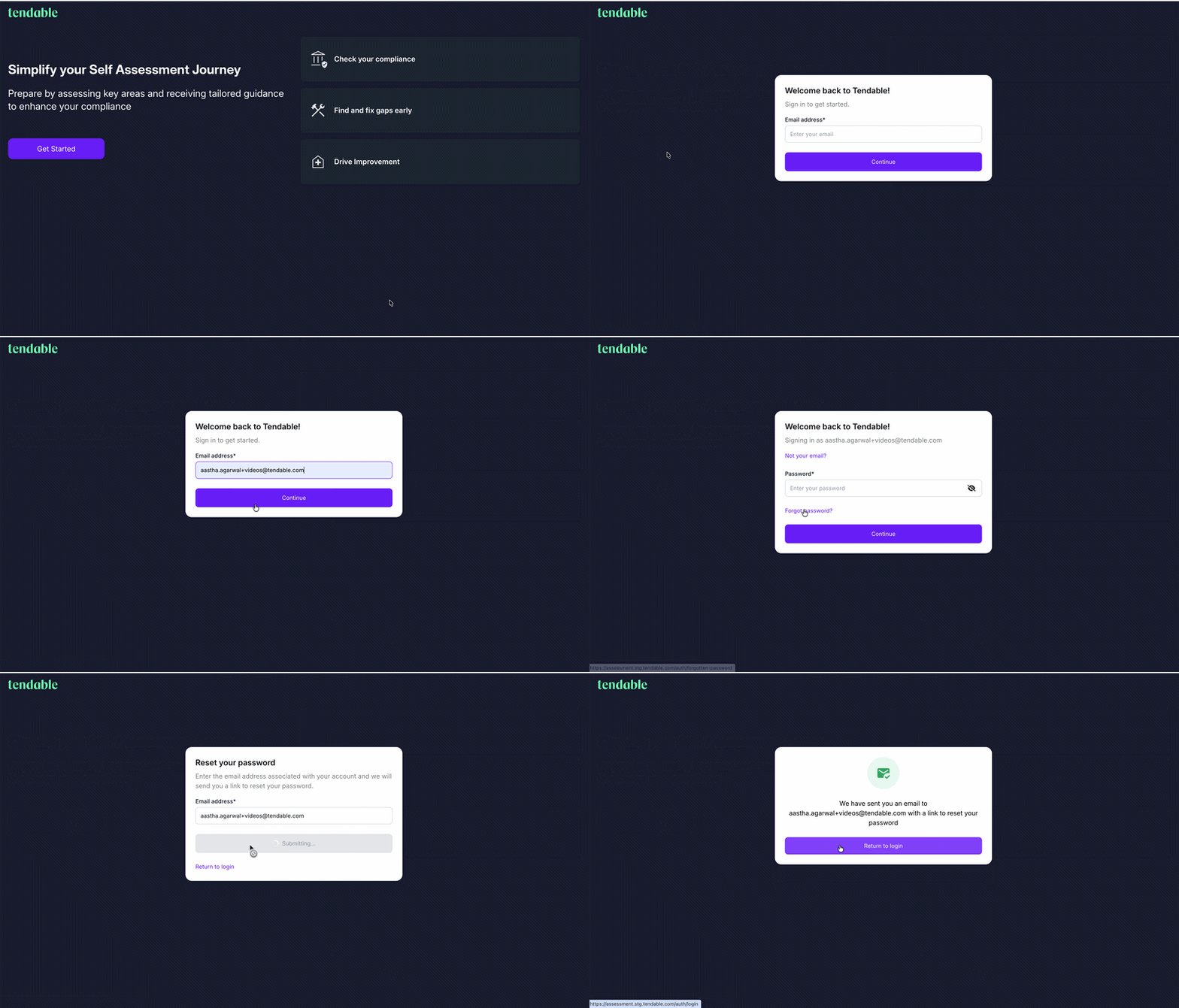 Send forgot email
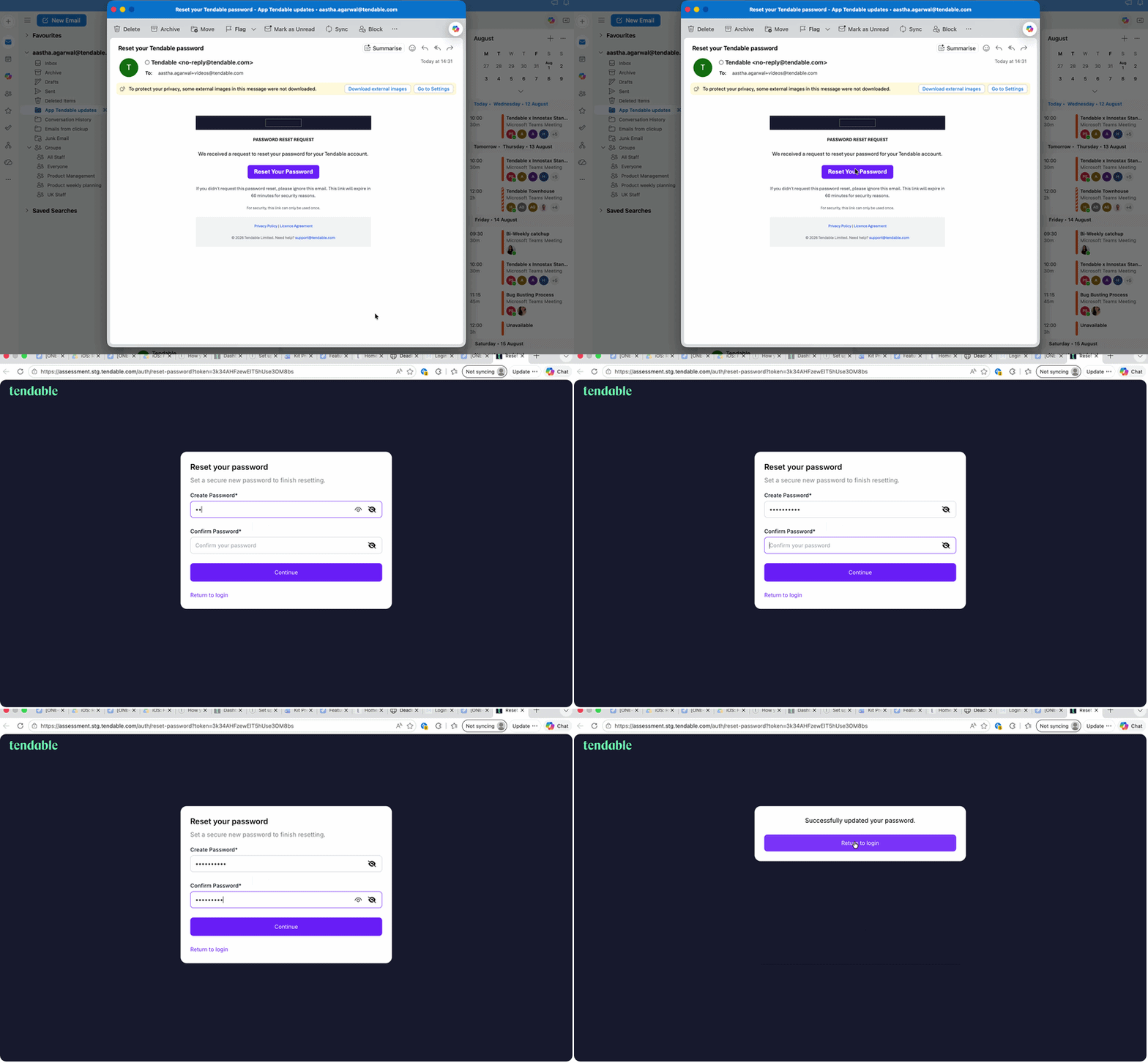
Change the password
Choosing a password
Your password needs to be at least 8 characters and include:
- one uppercase letter,
- one lowercase letter,
- one number,
- one special character (for example ! ? @ #),
- and no spaces.
Tips and troubleshooting
- The email didn't arrive. Check your spam or junk folder. We show the same confirmation whether or not an account exists for that address, so make sure you used the right email.
- "Invalid password reset link." The link has expired, has already been used, or was copied incorrectly. Go back to Forgot password? and request a fresh one.
- "Password Reset Required." This appears once, after a system update, because your old password no longer works. Reset it using the steps above and you'll be back to normal.
Related articles
Was this article helpful?
That’s Great!
Thank you for your feedback
Sorry! We couldn't be helpful
Thank you for your feedback
Feedback sent
We appreciate your effort and will try to fix the article