How to change someone's role or unit, switch off access for a person who has left, and restore it if they come back.
Who this is for: Administrators and User Managers.
Before you start
- You need to be an Administrator or User Manager.
- You can only change or deactivate someone whose role is the same as, or below, your own. A User Manager can't deactivate an Administrator, for example.
- You can only manage people in your own unit and everything beneath it.
Change someone's role or unit
- Open the Users area and stay on the Active Users tab.
- Find the person. Search by name, or filter by Role or Org Unit.
- Edit their row and change their role or Org Unit, then save.
The change takes effect straight away the next time they use Tendable.
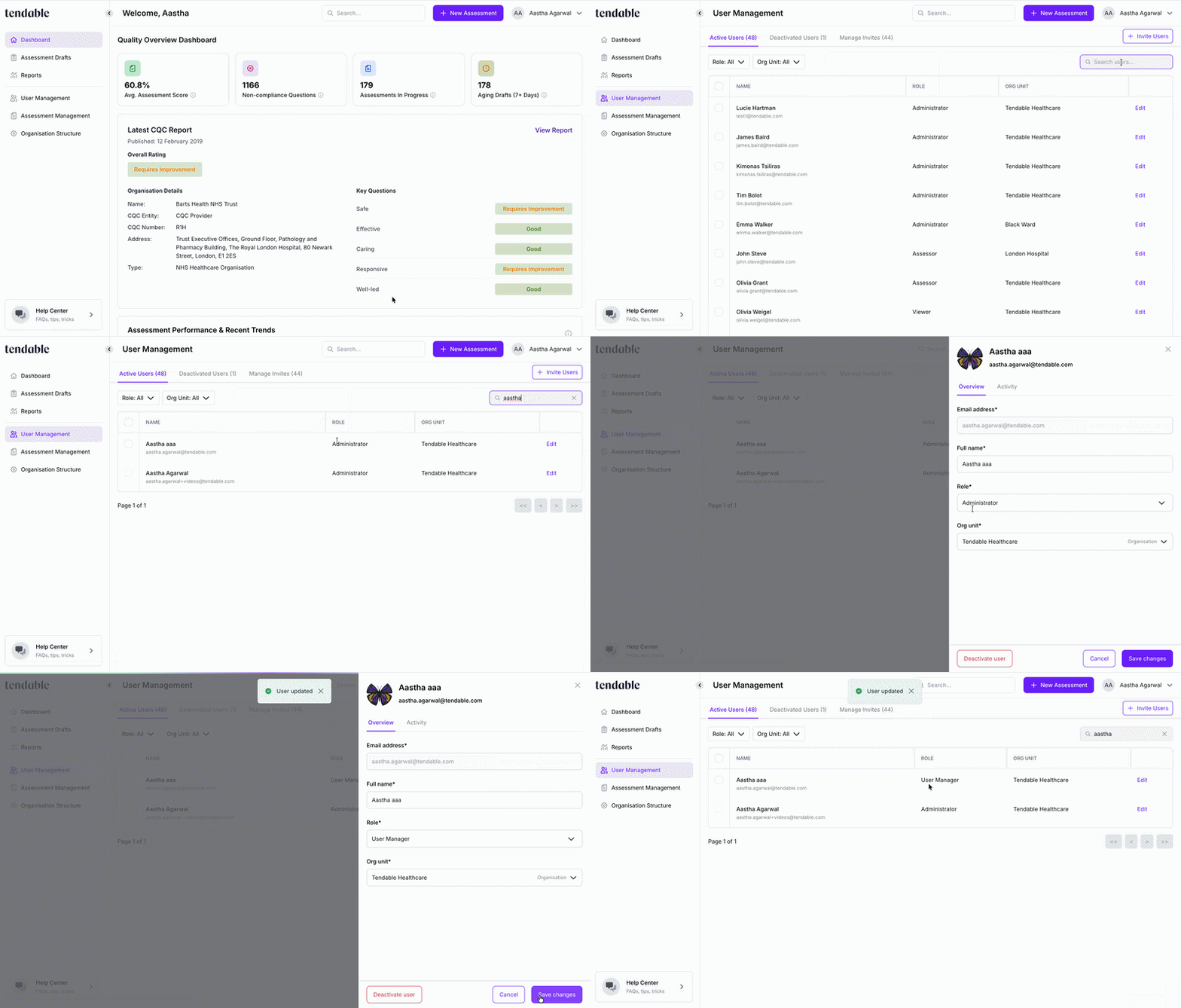 Edit a user
Deactivate a user
Deactivate someone when they leave or no longer need access.
- On the Active Users tab, find the person and choose Deactivate.
- Confirm in the Deactivate user window.
Deactivating someone removes their access and stops them signing in. It does not delete them or their work. Their completed audits, reports, and history all stay in place, so your records are unaffected. They simply move to the Deactivated Users tab.
You can deactivate several people at once by selecting multiple rows first.
Reactivate a user
If someone returns, you can switch their access back on.
- Open the Deactivated Users tab.
- Find the person and choose Reactivate.
- Confirm in the Reactivate user window.
They keep the same role and unit they had before. If those need to change, edit them afterwards (see above).
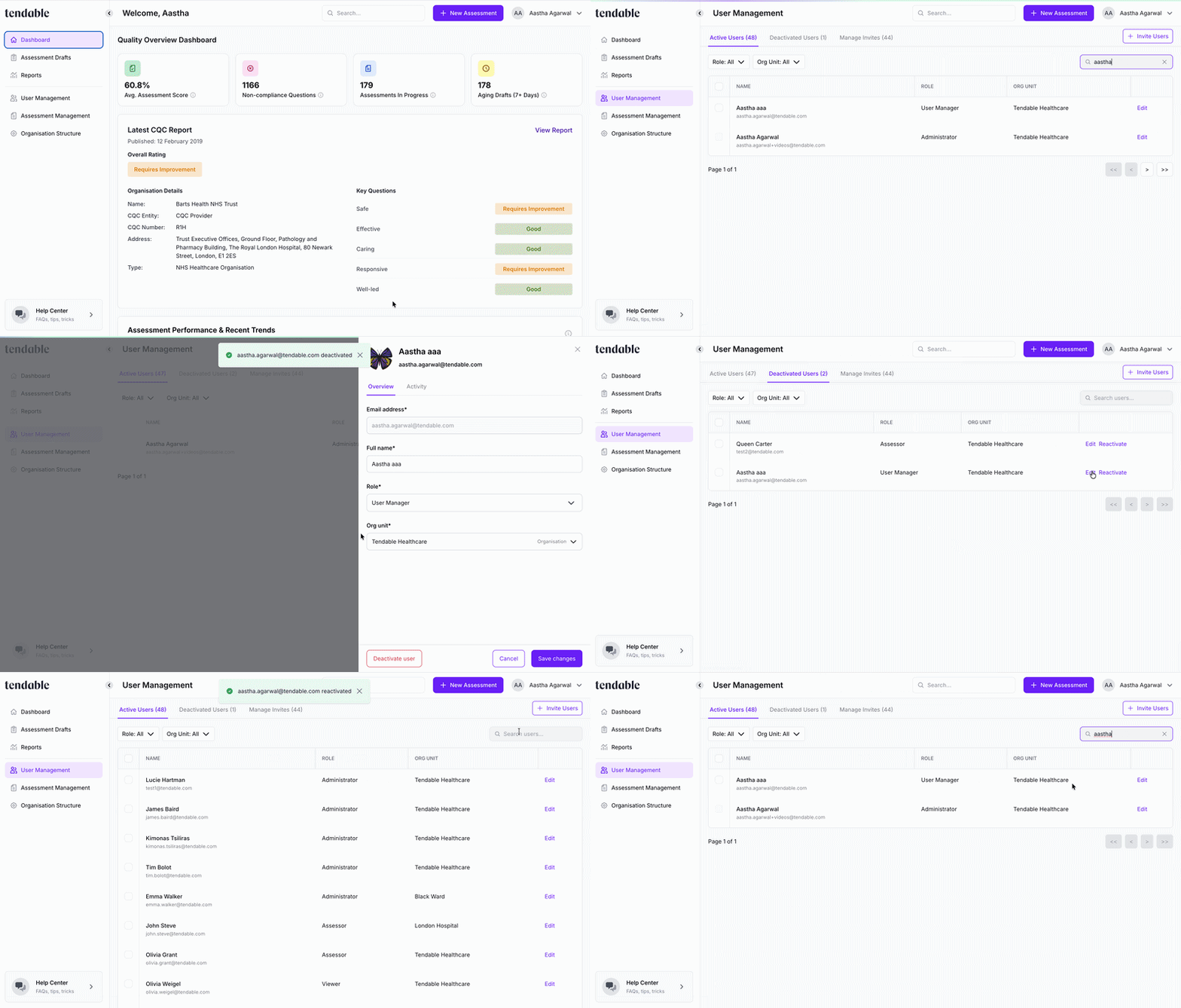 Deactivate/Reactivate a user
Tips & troubleshooting
- Deactivate, don't delete. There's no way to permanently delete a user, and that's deliberate. It protects the history attached to their audits and reports. Deactivating is the right way to remove access.
- A deactivated person can't log in. Their sign-in is blocked until you reactivate them. Reactivating restores access immediately.
- You can't act on someone above you. If you can't deactivate or edit a person, check their role. You can only manage people at or below your own role level. Ask an Administrator if you need to change an Administrator.
- Can't find the person? They may already be deactivated (check the Deactivated Users tab), or they may belong to a unit outside your reach.
Related articles
Was this article helpful?
That’s Great!
Thank you for your feedback
Sorry! We couldn't be helpful
Thank you for your feedback
Feedback sent
We appreciate your effort and will try to fix the article