How to create an assessment from scratch or from a template, add your questions, choose which units it covers, and publish it so your team can start using it.
Who this is for: Administrators and User Managers.
Before you start
- You need an Administrator or User Manager role. If you can see Assessment management with a Create Assessment button, you have access.
- Decide which units the assessment is for. You choose these during setup, and you can change them later.
- You can build from scratch, or start from a template. Templates are ready-made assessments provided by Tendable that you can adjust to suit you.
- Some templates are locked. With a locked template you can't change the questions. You just choose the units and publish. This is how Tendable provides standard assessments, such as the CQC self-assessment.
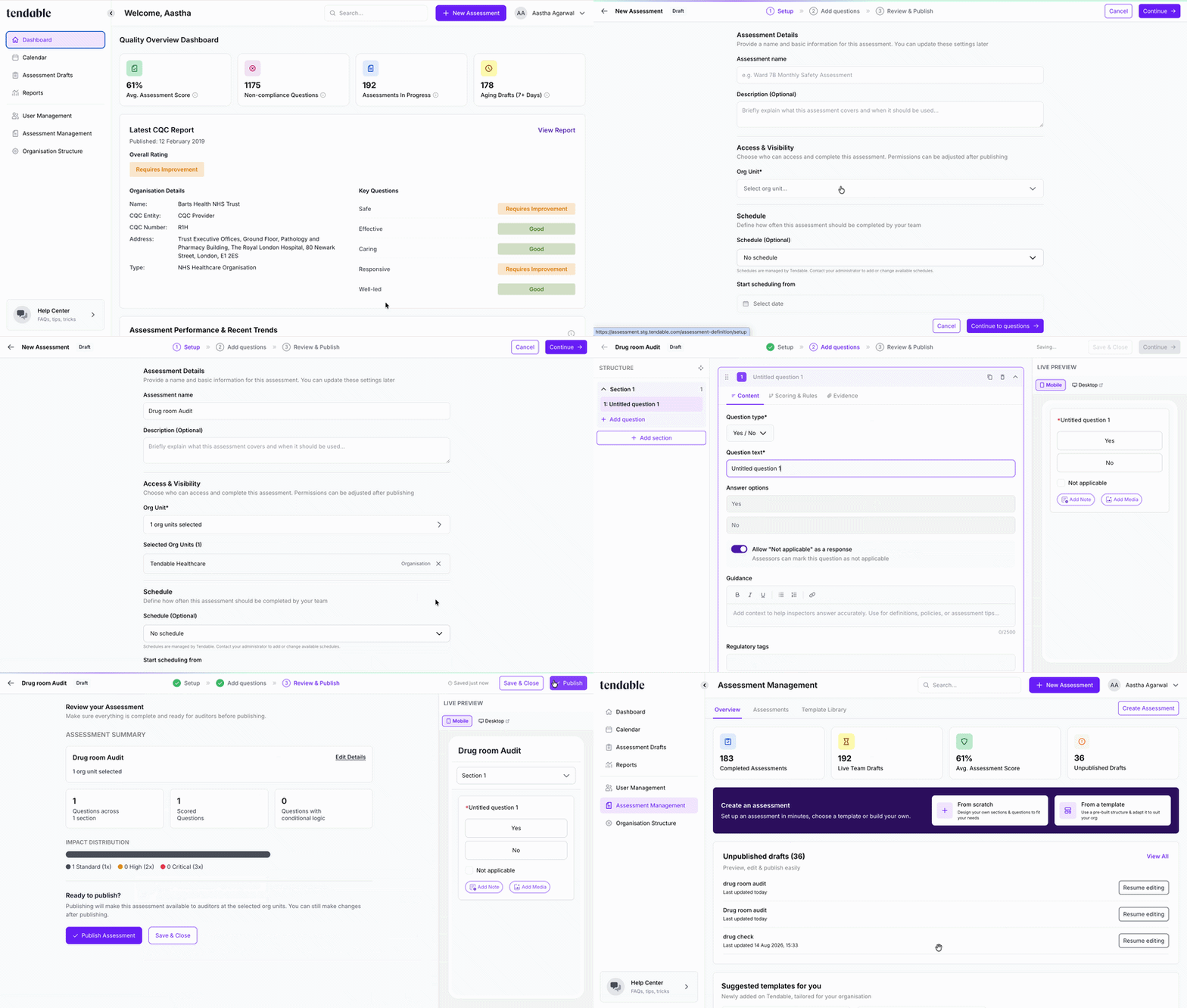
Start a new assessment
- Open Assessment management and go to the Assessments tab.
- Click Create Assessment.
- Choose how to start:
- Start from scratch to build your own from a blank assessment.
- From template library to begin from a Tendable template. Pick one, and its name, description, and questions are copied in for you to adjust.
You can also browse templates on the Template Library tab and click Use Template to start from there.
4a. Set up the basics
- Enter an Assessment name, for example "Monthly Safety Assessment".
- Add a Description if it helps your team know what it covers and when to use it. This is optional.
- Under Access & Visibility, choose the Org Unit (or units) that can access and complete this assessment. You need at least one. You can adjust this after publishing.
- Add a schedule to set how often this assesment should be completed.
- Click Continue.
4b. Add your questions
- Build the assessment out of sections and questions. This is where most of the work happens, so it has its own guide: see Add and configure questions.
- Your work saves automatically as you go, shown by the "last saved" status at the top.
- Use Save & Close to step away and come back later.
- When your sections are ready, click Continue.
If you started from a locked template, this step is skipped and you go straight to publishing.
4c. Review and publish
- Check the summary and the preview on the right. The preview shows the assessment exactly as your team will see it.
- Click Publish Assessment.
You'll see "Assessment is live!". It's now available at the units you chose, and your team can start completing it straight away.
Publishing isn't final. You can still make changes afterwards, and your live assessment keeps running until you publish those changes. See Edit a published assessment.
Create an assessment and publish
Preview before you publish
At any point, use Preview to open the assessment in a new tab and try it as one of your team would. You can click through and answer questions to check it reads well. Nothing you enter in a preview is saved.
The preview opens at its own web address, so you can copy the link from your browser and send it to a colleague. This is handy if you need a second pair of eyes or a sign-off before you publish. To open the link, they'll need to be signed in as an Administrator or User Manager with access to that assessment.
Tips and troubleshooting
- "Assessment is not ready to publish." An assessment needs at least one question before you can publish it. Add a question, then try again.
- You can't change the name or questions. If you see "Editing these is blocked for this assessment", you're working from a locked Tendable template. Choose your units and publish.
- Changing where it's used. You can adjust the units an assessment covers after publishing. See Find and manage your assessments for how.
- Someone else is editing the same assessment. If two people edit at once, only the first save goes through and the second sees a clash. Reload the page to pick up the latest version, then make your changes again.
Related articles
Was this article helpful?
That’s Great!
Thank you for your feedback
Sorry! We couldn't be helpful
Thank you for your feedback
Feedback sent
We appreciate your effort and will try to fix the article