How to build the sections and questions inside an assessment, set scoring, ask for evidence, show questions only when they're needed, and repeat a set of questions.
Who this is for: Administrators and User Managers.
Before you start
- You should be on the Add questions step of an assessment. If you haven't started one yet, see Build and publish an assessment.
- An assessment is made of sections, and each section holds questions. Sections help you group related checks together.
- Everything saves automatically as you work.
Add sections and questions
- Use the STRUCTURE panel on the left to manage your sections. Click Add section to create one, and click a section's title to rename it.
- Inside a section, click Add question (or Add first question if it's empty).
- Reorder questions by dragging them. Use the copy and delete icons on a question to duplicate or remove it. The section menu lets you Copy section or Delete section.
Choose a question type
Each question has a type that decides how your team answers it. Click Question type to choose:
| Type | What it's for |
|---|---|
| Yes / No | A simple pass or fail compliance check. |
| Single Choice | Pick one answer from a list of options you set. |
| Free Text | A written response. |
| Number | A whole number or decimal. |
| Date | A date, chosen from a date picker. |
If you change a question's type after adding answers, Tendable checks with you first, as some details may be lost.
Each question has three tabs: Content, Scoring & Rules, and Evidence.
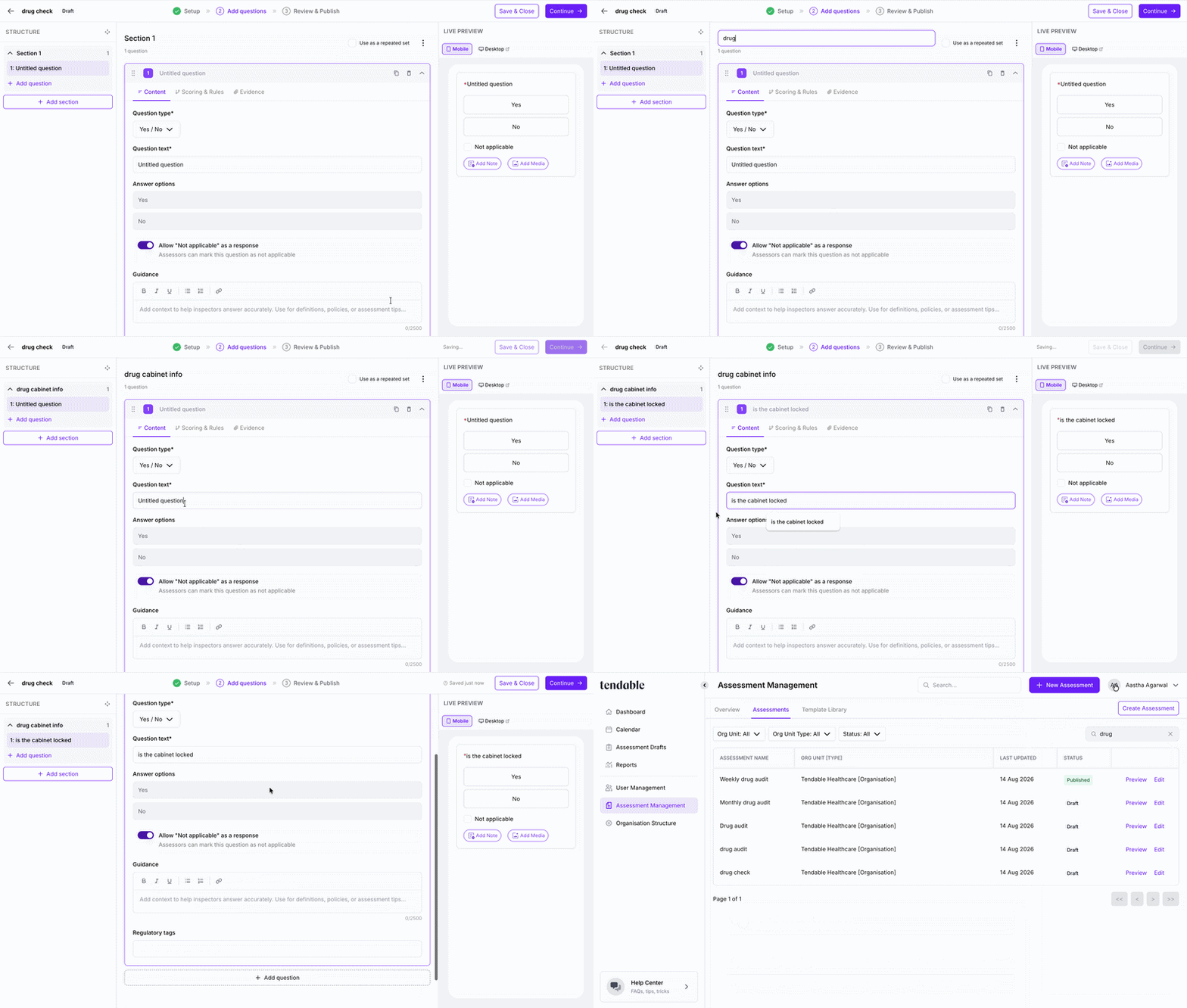 Renaming a section and adding a question
Content
- Question text is what your team reads. This is required.
- For a Single Choice question, add each answer option.
- Turn on Allow Not Applicable if a question won't apply every time. Your team can then mark it as N/A.
- Add Guidance to give your team a hint or instruction for answering.
- Add Tags to group questions across the assessment for reporting, for example "Safety" or "Staffing".
Scoring and the compliance score
Scoring turns answers into a compliance percentage in your results.
- Use the Enable scoring toggle on a question to switch it on. When scoring is off, the question is informational only and won't affect the compliance percentage.
- You can score Yes / No and Single Choice questions. You set a score for each possible answer. Free Text, Number, and Date questions are informational and aren't scored.
- Impact on score sets how much a scored question counts towards the total. Choose Standard, High, or Critical. A Critical question weighs more heavily than a Standard one, so use it for the checks that matter most.
Ask for evidence
Use the Evidence tab to decide when your team should attach a photo or file to back up their answer. Set the Evidence Trigger to one of:
- Optional for assessor - evidence can be added but isn't required.
- When response is non-compliant - evidence is required only when the answer is a fail. This is available for Yes / No questions.
- Always required - evidence must be added whatever the answer.
Evidence is stored with the completed assessment and included in the report.
Show a follow-up question only when needed
You can set up a question so that a particular answer reveals a follow-up question. This keeps assessments short and relevant, only showing extra questions when an answer calls for them.
- You set this up on the first question, not the follow-up.
- On that question's Scoring & Rules tab, open Conditional logic and click Add logic.
- Each rule reads "If answer is [an answer] then show [a follow-up question]". Choose the answer that should trigger it, then choose the follow-up question to reveal.
For example, on a "Was the area clean?" question, you could add: if the answer is "No", then show "Describe the issue". The follow-up question needs to sit later in the same section.
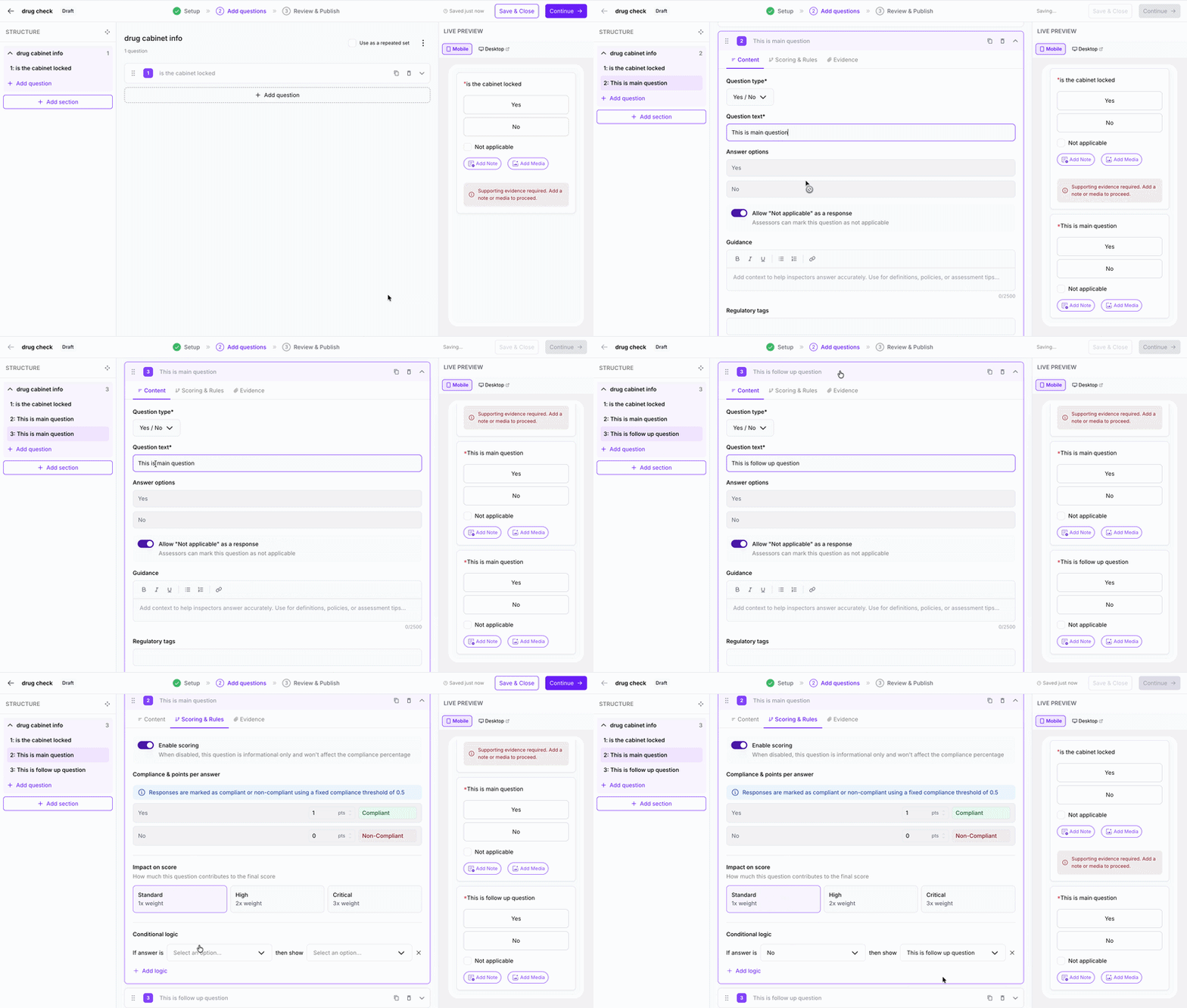 Add a follow up question
Repeat a set of questions
Sometimes your team needs to run the same checks several times in one assessment, for example checking several beds or patient records. Use a repeating section for this.
- Turn on the Repeating toggle for a section.
- Under Repetition Requirements, set the Minimum Required (at least 2) and choose what's being checked from the unit list (Observations, Patients, Residents, Service users, Staff members, Rooms, Beds, Records, or Incidents).
The number you set is the minimum, not a fixed amount. When your team completes the assessment, they need to run through that set of questions at least that many times, and they can add more if there's more to check.
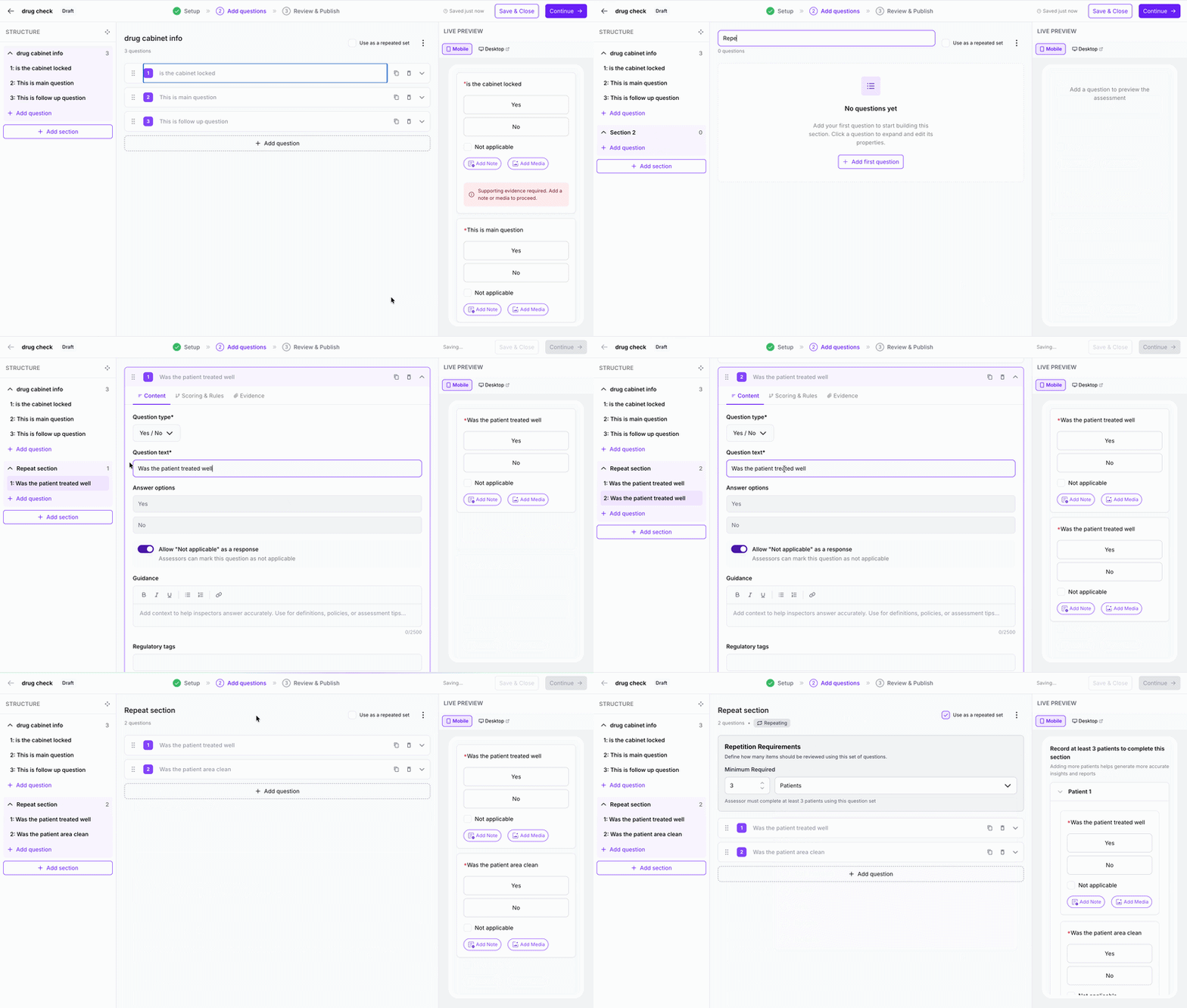 Repeat a set of questions
Tips and troubleshooting
- "A number greater than or equal to 2 is required." A repeating section needs a minimum of two. Set it to two or more, then continue.
- Scoring options are greyed out. Free Text, Number, and Date questions are informational and can't be scored. Use a Yes / No or Single Choice question if you need it to count towards the score.
- You can't turn on repeating for a section. This happens when a question in that section is used in another section's conditional logic. Remove that link first.
- Did my work save? Yes, the builder saves as you go. The "last saved" status at the top confirms it.
Related articles
- Build and publish an assessment
- Edit a published assessment
- Completing an assessment (what your team sees and does)
Was this article helpful?
That’s Great!
Thank you for your feedback
Sorry! We couldn't be helpful
Thank you for your feedback
Feedback sent
We appreciate your effort and will try to fix the article