What a schedule is, how it sets recurring due dates for an assessment, and how to attach one and publish it.
Who this is for: Administrators and User Managers.
What a schedule is
A schedule sets how often an assessment should be completed, and from when. Attach one to an assessment and Tendable works out the due dates for you, so your teams know when each assessment is expected rather than relying on memory or a spreadsheet.
Schedules are optional. An assessment without one still works perfectly well, it just won't have due dates attached.
Tendable creates and maintains the schedules for your organisation. You don't build the recurrence rules yourself. You pick the right schedule from a list when you set an assessment up, and decide when it should start. If you need a schedule that doesn't exist yet, or want one changed or renamed, contact Tendable and we'll set it up for you.
Schedules and deadlines
These two go together, so it's worth being clear on the difference.
| What it is | |
|---|---|
| Schedule | The repeating rule, for example "monthly" or "every week". You choose one and set when it starts. |
| Deadline | A single due date the schedule produces, for one assessment at one unit. A monthly schedule running across three wards creates a deadline for each ward, each month. |
So one schedule quietly generates many deadlines over time, one per unit per cycle.
Recurring or one-off
- Recurring schedules repeat, for example daily, weekly, monthly, or yearly. You give them a start date and they keep producing deadlines from then on.
- One-off schedules produce a single deadline on a date you choose, and don't repeat.
Before you start
- You need an Administrator or User Manager role. If you can build assessments, you can attach a schedule.
- Schedules are set up by Tendable. You pick one from a list, you don't create it. If the schedule you need isn't listed, contact Tendable and we'll add it.
- A schedule is part of an assessment's setup, so it only takes effect when you publish.
Assign a schedule
- Open Assessment Management, go to the Assessments tab, find your assessment, and click Edit. (You can also do this while building a new one.)
- Go to the first step of the builder, where you set up the basics.
- Find the Schedule section.
- Open the Schedule (Optional) dropdown and choose the one you want. Choose No schedule to leave the assessment without due dates.
- Set Start scheduling from:
- Pick the date you want due dates to begin from, or
- Leave it blank to start from the day you publish.
- For a one-off schedule, this field reads Deadline date, the single date it's due.
- Check the First Deadline preview. It confirms the first due date so you can be sure the schedule lands where you expect.
- Continue through the builder and publish. The due dates are created when you publish.
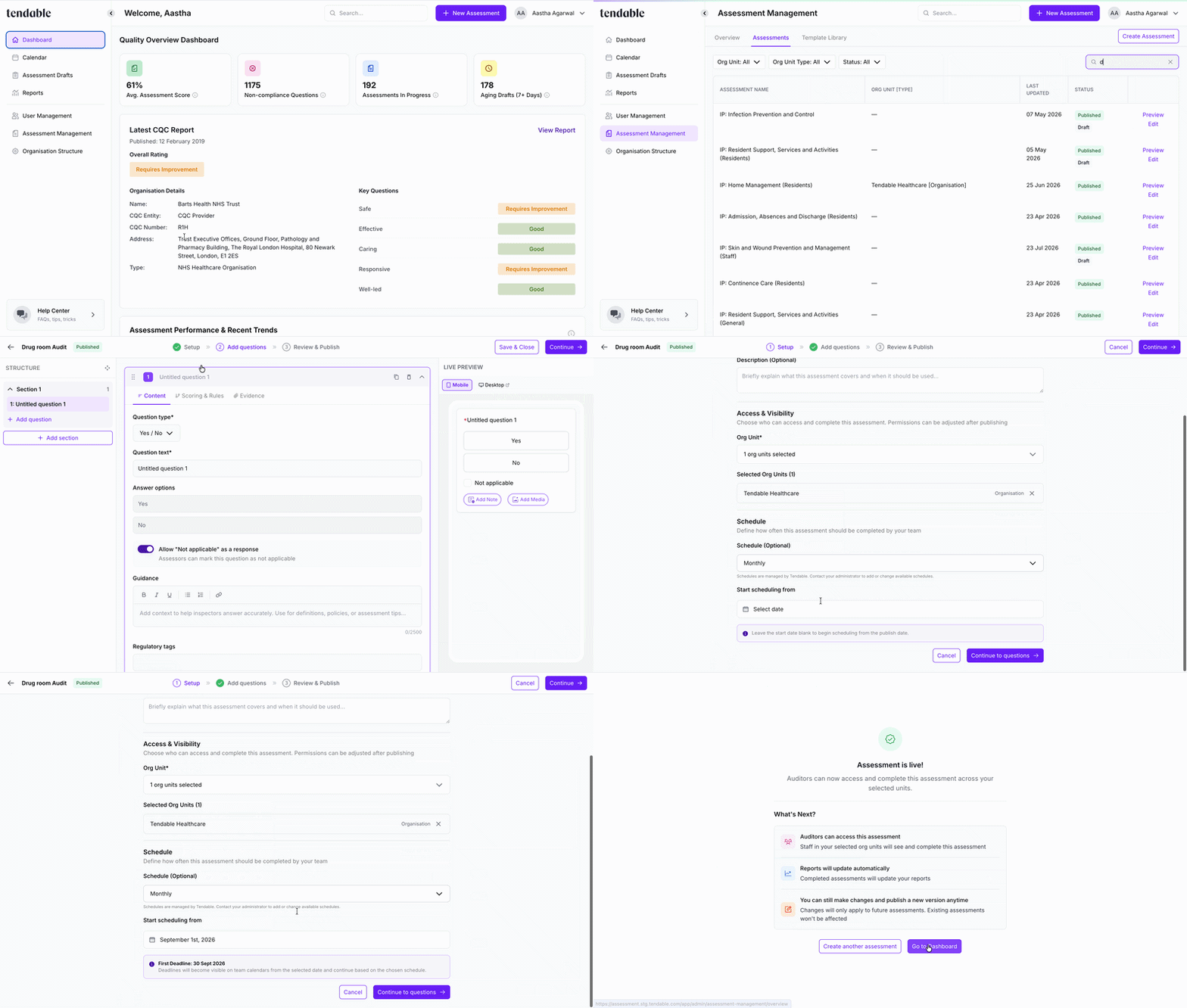 Assessment schedule set up
What happens after you publish
- Tendable generates the due dates from your start date, across every unit the assessment covers.
- Upcoming due dates keep being generated automatically over time, so a long-running monthly assessment always has its next dates ready.
- If you later change or remove the schedule and publish again, future due dates are regenerated to match. Anything your team has already started or completed is kept.
Change or remove a schedule later
You change a schedule the same way you set it: edit the assessment and publish again.
- Edit the assessment and return to the first step.
- Pick a different schedule, change the start date, or choose No schedule to stop future due dates.
- Publish.
Future due dates are regenerated to match. Anything your team has already started or completed is kept.
Tips and troubleshooting
- Nothing happened after I chose a schedule. Attaching a schedule is part of setup. It only takes effect once you publish.
- The schedule I need isn't in the list. Schedules are managed by Tendable. Contact us to add, rename, or change one.
- No First Deadline preview is showing. Pick both a schedule and a start date. If you leave the start date blank, the preview is replaced by a note confirming it will start from your publish date.
- I changed the units, will the schedule follow? Yes. Due dates are generated for whichever units the assessment covers when you publish. For changing units, see Find and manage your assessments.
Related articles
- Build and publish an assessment
- Find and manage your assessments (including changing which units an assessment covers)
- Edit a published assessment
Was this article helpful?
That’s Great!
Thank you for your feedback
Sorry! We couldn't be helpful
Thank you for your feedback
Feedback sent
We appreciate your effort and will try to fix the article